AWS service limits are the maximum values AWS enforces on resources, API calls, and actions in your account. The official term is service quotas, and they are region-specific unless AWS explicitly notes otherwise. If a workload is failing with cryptic errors, check your applied quotas first.
Three immediate actions to take right now:
- Open the Service Quotas console and search for the service that’s failing.
- Run
aws service-quotas list-service-quotas --service-code ec2(swap the service code as needed) to see applied values and utilization. - Cross-reference any API error against the quota’s Applied quota value, not the AWS default shown in documentation.
AWS Service Quotas is the central console and API for viewing and managing these limits. AWS Support (Support Center) handles escalations when a quota isn’t listed in Service Quotas or when a request is denied.
Key Takeaways
Applied quota values govern enforcement in your AWS account; always verify the applied value, not the AWS default, when troubleshooting failures.
| Point | Details |
|---|---|
| Check applied quotas first | The applied quota value, not the AWS default, is what AWS enforces against your workload. |
| Request increases early | Larger requests can take days to review; submit at least two weeks before a planned scale event. |
| Monitor with CloudWatch alarms | Set utilization alarms at 70–80% so you have time to act before hitting the ceiling. |
| Respect Service Quotas request limits | Active requests per account cap at 20 and per quota at 1; automate with backoff to avoid failures. |
| IT-Magic handles quota planning end-to-end | IT-Magic’s pre-migration audit maps quota exposure and submits increases before go-live. |
Table of Contents
- What are AWS service limits, exactly?
- How do you find the quotas you’re actually hitting?
- How do you request a quota increase?
- Which quotas can you change, and which ones are fixed?
- What should you expect from approval timelines and request limits?
- Which quotas do admins hit most often?
- How do you monitor quotas and automate responses?
- CLI and API quick reference
- How do you troubleshoot quota errors without chasing the wrong cause?
- What quota planning actually looks like in production
- Quota risk is a migration problem IT-Magic solves before go-live
- Sources
- FAQ
What are AWS service limits, exactly?
AWS accounts carry default quotas (formerly called limits) for every service. Those defaults are the starting values AWS assigns to new accounts. When you request an increase and AWS approves it, the resulting value becomes your applied quota, which is what actually governs enforcement.
The distinction matters during troubleshooting. Documentation and blog posts quote default values. Your account may have a higher applied quota from a previous request, or a lower one if AWS partially approved a request. The applied value is the only number that counts.
Global vs. regional quotas. Most quotas are scoped to a single AWS Region. A vCPU quota increase in us-east-1 does not carry over to eu-west-1. A small set of quotas (IAM entities, Route 53 hosted zones) are global and must be requested from us-east-1 or through a Support case that specifies the global scope.

Adjustable vs. non-adjustable. AWS marks each quota with an Adjustable flag. Non-adjustable quotas reflect hard architectural constraints, not policy decisions, so submitting a request for them wastes time. The Service Quotas console shows this flag clearly before you attempt a request.
How do you find the quotas you’re actually hitting?
The Service Quotas console, the AWS General Reference, the CLI, and AWS Trusted Advisor each give you a different slice of the picture. Use them together.
-
Service Quotas console. Navigate to the service, then the quota. The detail page shows: Quota name, AWS default quota, Applied quota value (your override, if one exists), Utilization (percentage of the applied quota currently consumed), and the Adjustable flag. If the applied value shows “Not available,” request it through Support — some quotas are only retrievable at the resource level.
-
AWS General Reference — Service endpoints and quotas. The General Reference page lists default values for every service in a single searchable document. Use it to confirm what the out-of-the-box limit is before you compare it to your applied value.
-
CLI:
list-service-quotasandlist-aws-default-service-quotas.list-service-quotasreturns your account’s applied values;list-aws-default-service-quotasreturns the AWS defaults. Both calls are paginated. The response includesQuotaCode,QuotaArn,Value, andAdjustable. For scripting, use--no-paginateto pull all pages in one call, then filter with--queryto isolate the fields you need. -
Account-level vs. resource-level applied values. Some quotas apply at the account level (one value for the whole account in a Region). Others apply at the resource level, meaning each resource has its own applied quota. To retrieve resource-level values, call
ListServiceQuotaswith theQuotaAppliedAtLevelparameter set toRESOURCEorALL. If the console shows “Not available” for an applied value, that quota may only be retrievable at the resource level. -
AWS Trusted Advisor. Trusted Advisor includes quota-related checks under the Service Limits category. It flags quotas where utilization is approaching or has exceeded the threshold, and it surfaces warnings you might miss if you only check Service Quotas manually. Trusted Advisor complements Service Quotas rather than replacing it: it gives you a cross-service dashboard view, while Service Quotas gives you the precise applied values and request workflow.
Pro Tip: Set a browser bookmark directly to the Service Quotas console for each Region you operate in. Switching Regions in the console resets the view, so a Region-specific URL saves time during an incident.
How do you request a quota increase?
Three paths exist: the console, the API/CLI, and a Support case. Which one to use depends on whether the quota appears in Service Quotas and whether you need an account-level or resource-level increase.
Console flow:
- Open Service Quotas and select the service.
- Find the quota and confirm the Adjustable flag is set to Yes.
- Choose Request quota increase.
- For account-level increases, enter the desired value and submit. For resource-level increases, you must supply the resource ARN.
- Track the request under Quota request history.
API/CLI flow:
The RequestServiceQuotaIncrease operation requires two identifiers: ServiceCode (e.g., ec2) and QuotaCode (e.g., L-1216C47A). For resource-level increases, add ContextId set to the resource ARN. Retrieve the QuotaCode from a prior list-service-quotas call. Submitting without the correct QuotaCode returns an invalid-request error, so script the ARN lookup rather than typing it manually.
Support case:
Open a Support case when:
- The service does not appear in the Service Quotas console.
- A request was denied and you need to provide additional business context.
- The increase involves a global quota or a cross-account scenario.
Include your current utilization trend, the target value, the target Regions, and a brief business justification. Requests with clear capacity data move faster through review.
Permissions required:
ServiceQuotasFullAccessmanaged policy covers console and API requests.iam:CreateServiceLinkedRoleis required for CLI/API requests that trigger a service-linked role.- Without these, the request call returns an
AccessDeniedExceptionrather than a quota error, which can mislead troubleshooting.
Which quotas can you change, and which ones are fixed?
The Adjustable column in the Service Quotas console is the definitive answer. A value of Yes means you can request an increase. A value of No means the quota is a hard architectural limit and no request path will change it.
When a quota is non-adjustable, the operational response is architectural. Common fallbacks: distribute load across multiple AWS accounts (each account gets its own quota set), redesign to use fewer resources of that type, or use a different resource type that has an adjustable equivalent. For example, if a per-ENI security group limit blocks you, consolidating rules within existing groups or using VPC prefix lists can reduce the number of groups attached.
What should you expect from approval timelines and request limits?
Smaller increases, particularly those well within typical usage patterns, are often automatically approved within minutes. Larger requests, especially those that represent a significant multiple of the current applied quota, go to a Support review queue and can take a couple of days. AWS can approve, deny, or partially approve any request.
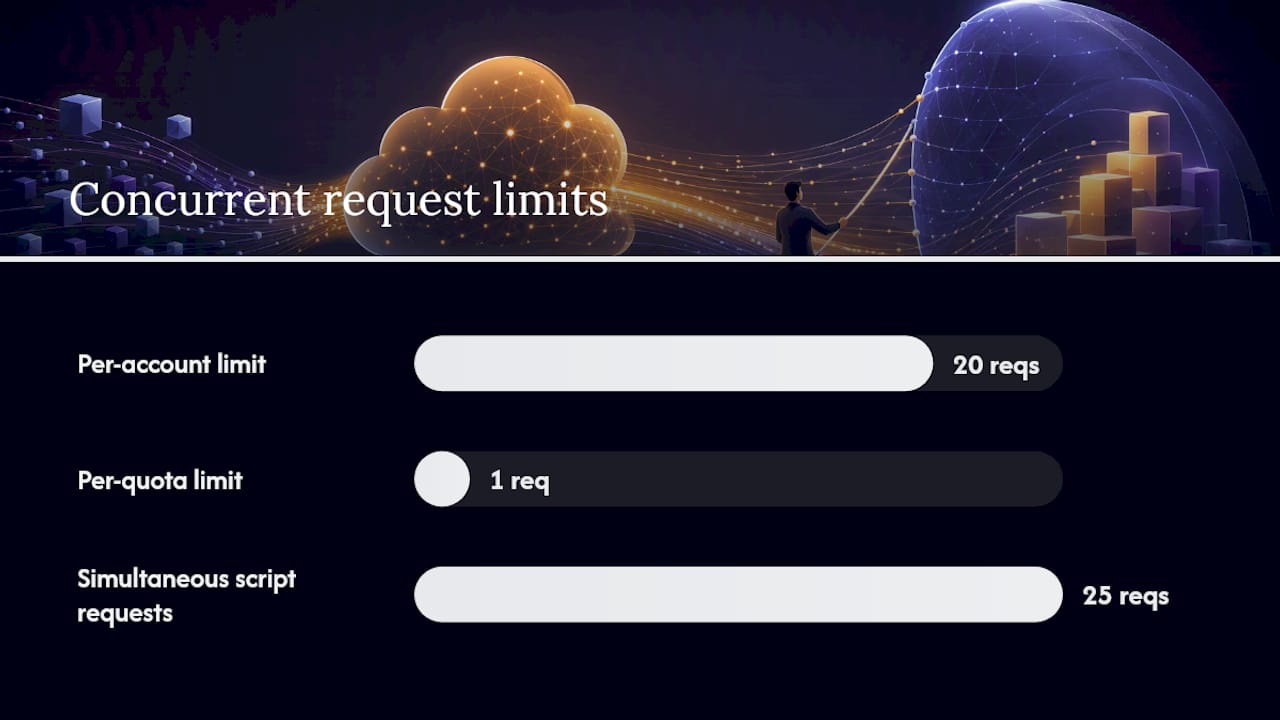
Service Quotas itself has enforced limits on concurrent requests, and those limits are non-adjustable:
| Service Quotas limit | Default value | Adjustable |
|---|---|---|
| Active requests per account | 20 | No |
| Active requests per quota | 1 | No |
These limits matter for automation. If a script submits requests for 25 quotas simultaneously, it will hit the per-account limit and some requests will fail. Build in backoff logic and track pending request counts before submitting new ones.
Operationally, treat quota requests the same way you treat infrastructure changes: put them through your change management process. Request increases at least one week before a planned scale event. For major migrations or traffic ramps, two weeks is safer. Quota increases are not instantaneous even when auto-approved, and a denied request with no fallback plan during a production launch is a bad situation.
Which quotas do admins hit most often?
These are the quotas that generate the most incident tickets. Each one has a characteristic failure symptom and a short-term mitigation you can apply while waiting for an increase.
-
EC2 vCPUs per Region (On-Demand Standard). Symptom: instance launch fails with
VcpuLimitExceeded. Mitigation: stop unused instances, use Spot capacity for non-critical workloads, or launch in a different Region. EC2 quota exhaustion causes the launch request to fail immediately, so the fix must be in place before the next launch attempt. -
Elastic Network Interfaces (ENIs) per Region. Symptom: Lambda functions or ECS tasks fail to attach network interfaces. Mitigation: delete unused ENIs (orphaned ENIs from deleted resources are a common culprit), reduce Lambda VPC attachment scope.
-
VPCs per Region. Default is 5. Symptom: VPC creation fails. Mitigation: consolidate environments into existing VPCs using subnets, or request an increase before hitting the ceiling.
-
Lambda concurrent executions. Symptom:
TooManyRequestsExceptionat the function level. Mitigation: configure reserved concurrency on high-priority functions to protect them from noisy neighbors, and use SQS or EventBridge to buffer traffic. -
RDS DB instances per Region. Symptom:
DBInstanceQuotaExceeded. Mitigation: use Aurora Serverless or consolidate smaller databases onto shared clusters. -
DynamoDB read/write capacity units (provisioned mode). Symptom:
ProvisionedThroughputExceededException. Mitigation: switch to on-demand mode temporarily, or increase provisioned capacity at the table level.
For AWS scalability planning, build a quota inventory as part of your capacity model. Know your current utilization against applied quotas before a traffic event, not during one.
How do you monitor quotas and automate responses?
Reactive quota management is the wrong model. By the time a quota causes a production failure, the window to prevent it has already closed.
-
Service Quotas Automatic Management (announced November 2025) monitors quota usage, sends notifications via email, SMS, or Slack when usage approaches a threshold, and can automatically adjust supported quotas without manual intervention. It requires an enablement step and takes up to 24 hours to begin monitoring after activation. Do not enable it the morning of a planned scale event and expect immediate coverage.
-
CloudWatch metrics. Service Quotas publishes utilization metrics to CloudWatch for supported quotas. Create alarms at 70–80% utilization so you have time to request an increase before hitting the ceiling. Route alarms to an SNS topic that pages your on-call engineer.
-
Custom metrics. For quotas that don’t publish native CloudWatch metrics, write a Lambda function that calls
list-service-quotas, calculates utilization, and publishes a custom metric. Schedule it with EventBridge on a 15-minute interval. -
AWS Organizations and SCPs. In multi-account environments, Service Control Policies (SCPs) can block API calls even when the quota is sufficient. An
AccessDeniedExceptionfrom an SCP looks identical to a quota error at the application layer. Coordinate quota planning with your Organizations governance team to avoid chasing the wrong root cause. For regulated industries, cloud security governance frameworks treat quota management and permission guardrails as a unified control surface. -
Operational checklist: define who owns quota alerts, maintain a runbook for each high-risk quota, and cap automation to stay within the 20 active-requests-per-account limit.
CLI and API quick reference
These commands cover the most common quota operations. All service-quotas commands require the AWS CLI v2 and appropriate IAM permissions.
-
List applied quotas for a service:
aws service-quotas list-service-quotas --service-code ec2
Add--no-paginateto retrieve all pages in one call. The response includesQuotaCode,QuotaArn,Value, andAdjustablefields. -
List AWS default quotas (not your applied values):
aws service-quotas list-aws-default-service-quotas --service-code lambda -
Find a specific quota code:
aws service-quotas list-service-quotas --service-code ec2 --query "Quotas[?contains(QuotaName,'vCPU')].[QuotaName,QuotaCode,Value]" --output table -
Request an account-level increase:
aws service-quotas request-service-quota-increase --service-code ec2 --quota-code L-1216C47A --desired-value 500 -
Request a resource-level increase (supply the resource ARN as
ContextId):
aws service-quotas request-service-quota-increase --service-code ec2 --quota-code L-XXXXXXXX --desired-value 100 --context '{"ContextId":"arn:aws:ec2:us-east-1:123456789012:..."}' -
Check request status:
aws service-quotas list-requested-service-quota-changes-by-service --service-code ec2
Pro Tip: Script the QuotaCode lookup from list-service-quotas output rather than hardcoding it. Quota codes are stable but differ by service, and a wrong code returns an error that looks like a permissions problem.
How do you troubleshoot quota errors without chasing the wrong cause?
Quota exhaustion rarely announces itself cleanly. At the application layer it looks like a failed API call, a timeout, or a generic service error. The first instinct is often to blame the application.
Cross-check before opening a ticket. Pull the CloudWatch logs for the failing operation, note the exact error code, then open Service Quotas and compare the applied quota value against current utilization. If utilization is well below the applied value, look elsewhere: IAM permissions, SCP blocks, or a service-side issue.
A structured triage checklist:
- Confirm the applied quota value (not the AWS default).
- Check utilization in the Service Quotas console or via CloudWatch.
- Verify IAM permissions:
ServiceQuotasFullAccessfor requests,iam:CreateServiceLinkedRolefor CLI automation. - Check for SCP or RCP blocks in AWS Organizations that could deny the action independently of the quota.
- Check pending active requests: if you already have one active request per quota, a second request will fail until the first resolves.
When to escalate to Support: urgent production needs where auto-approval hasn’t triggered within an hour, denied requests where you have additional business context to provide, or complex scenarios involving global quotas or cross-account resource sharing.
What quota planning actually looks like in production
Quota planning is the part of migration work that gets skipped until it causes an outage. The pattern repeats: a team migrates a workload, traffic ramps up, and three weeks later an EC2 launch fails because nobody requested a vCPU increase before go-live.
The right approach is to treat quota increases as a dependency in the migration project plan, not an afterthought. Before any significant scale event, map the quotas that gate your critical paths: vCPUs, ENIs, Lambda concurrency, RDS instances. For global quotas, route the request through us-east-1 and flag it in your change management system.
One practical shortcut: after enabling Service Quotas Automatic Management, wait the full 24-hour initialization period before relying on it for a scale event. Teams that enable it and immediately ramp traffic are operating without a safety net.
Multi-account architectures distribute quota headroom naturally. Each account gets its own quota set, so splitting a high-load workload across two accounts effectively doubles the available quota without a single increase request. That architectural decision is worth making early, before you’re in an incident.
Quota risk is a migration problem IT-Magic solves before go-live
Quota failures during a migration don’t happen because teams are careless. They happen because quota planning requires knowing which limits apply to your specific workload at your specific scale, and that knowledge only comes from doing this repeatedly.
IT-Magic’s AWS migration services include a pre-migration infrastructure audit that maps your quota exposure before a single workload moves. The team handles quota increase requests, multi-account design for quota distribution, and runbooks for every high-risk limit. Post-migration, the 24/7 SRE team monitors utilization and escalates requests before they become incidents. As an AWS Advanced Tier Partner with 700+ completed projects, IT-Magic has handled quota planning for high-load eCommerce and fintech environments where a missed limit means lost revenue.
If your team is planning a migration or scaling a workload on AWS, request a free infrastructure audit to get a clear picture of your quota exposure before it becomes a production problem.
Sources
These are the AWS documentation pages and consoles to bookmark for quota work:
FAQ
What are AWS service limits?
AWS service limits are the maximum values (service quotas) AWS enforces on resources, API calls, and actions per account. Most are Region-specific and some are non-adjustable.
How do I request a quota increase in AWS?
Open the Service Quotas console, select the quota, and choose Request quota increase. For CLI, run aws service-quotas request-service-quota-increase with the ServiceCode, QuotaCode, and DesiredValue parameters.
How do I check my current AWS limits?
Run aws service-quotas list-service-quotas --service-code <service-code> to see applied values and utilization, or open the Service Quotas console and search by service name.
How long does a quota increase take?
Small increases are often auto-approved within minutes. Larger requests go to a Support review queue and can take a couple of days. AWS may approve, deny, or partially approve any request.
Does AWS guarantee 99.99% uptime for all services?
Check the AWS Service Level Agreements page for the specific commitment that applies to each service you depend on.