AWS does support macOS on EC2, and the technical term you’ll see in official documentation is Amazon EC2 Mac instances — bare-metal Apple hardware running in AWS data centers, not a virtualized macOS environment. These are the right tool when your team needs to build, test, sign, or interactively run macOS, iOS, iPadOS, tvOS, or watchOS apps in the cloud. Two constraints matter before you go further: every Mac instance runs on a Dedicated Host, and that host carries a 24-hour minimum billing window regardless of how long you actually use it.
Primary use cases:
- CI/CD pipelines for Apple-platform apps (Xcode builds, code signing, notarization)
- Distributed UI testing across macOS and iOS simulators
- Interactive developer desktops for remote macOS work
- QA labs for macOS version compatibility testing
Before you provision: You cannot release a Mac Dedicated Host before the 24-hour window ends. Plan your job scheduling around this constraint — it drives every cost and architecture decision downstream.
Key Takeaways
EC2 Mac instances are bare-metal Apple hardware on AWS Dedicated Hosts — the 24-hour minimum billing window is the single most important constraint shaping every architecture and cost decision.
| Point | Details |
|---|---|
| Bare-metal, not virtualized | Mac instances run on physical Apple hardware; no hypervisor, which means native performance and full hardware access. |
| 24-hour minimum billing | Every Dedicated Host bills for at least 24 hours from allocation — batch jobs to fill the window before releasing. |
| One instance per host | You cannot run multiple Mac instances on a single Dedicated Host; plan host count based on parallelism needs. |
| No Auto Scaling support | Mac Dedicated Hosts require custom orchestration (job schedulers, host pool managers) instead of standard EC2 Auto Scaling. |
| IT-Magic for build-farm design | IT-Magic offers fixed-price EC2 Mac migration and DevOps engagements, including free audits for teams evaluating or optimizing Mac host costs. |
Table of Contents
- What are EC2 Mac instances, and how do they actually work?
- Which EC2 Mac instance types and macOS versions does AWS support?
- How do you provision and launch an EC2 Mac instance?
- How do you connect to and manage a macOS instance on EC2?
- What does an EC2 Mac instance actually cost?
- What are the hard limits of EC2 Mac instances?
- CI/CD patterns and cost strategies that actually work for macOS build farms
- My take: when EC2 Mac instances belong in your platform plan
- How IT-Magic helps teams design and operate EC2 Mac build farms
- Sources
- FAQ
What are EC2 Mac instances, and how do they actually work?
Unlike standard EC2 instances, which run on hypervisor-virtualized hardware, EC2 Mac instances run on bare-metal Apple hardware in AWS data centers. There is no hypervisor layer between your macOS environment and the physical CPU, GPU, and memory. That matters for two reasons: compilation performance is predictable and consistent, and features that require low-level hardware access (like certain security frameworks and hardware-backed keychain operations) work exactly as they do on a physical Mac.
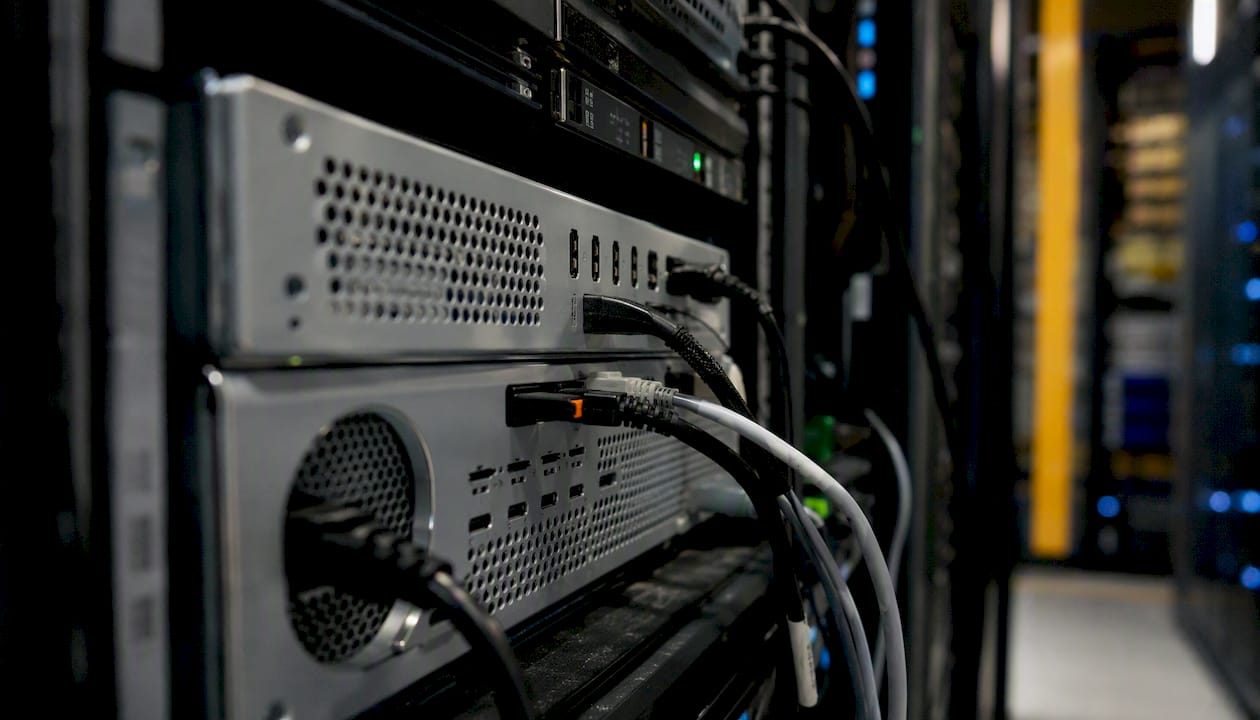
The Dedicated Host model is what makes this possible. AWS allocates an entire physical Mac mini or Mac Pro to your account for the duration of your tenancy. You get one instance per host, full stop.
Common use cases that justify the cost:
- Building and signing iOS, macOS, tvOS, and watchOS apps for App Store submission
- Running Xcode’s UI test suite across multiple simulator configurations
- Hosting ephemeral QA environments for macOS version regression testing
- Rendering workflows that benefit from Apple silicon’s media engine
- Device management testing with tools like Jamf
EC2 Mac instances integrate natively with the broader AWS ecosystem. You attach Amazon EBS volumes for persistent storage, use AWS Systems Manager for patch management and remote command execution without opening SSH ports, ship logs to CloudWatch, and pull artifacts from S3. The macOS AMIs that AWS provides are EC2-optimized and pre-loaded with the AWS CLI, CloudWatch Agent, and ec2-macos-init for instance initialization.
Pro Tip: If your team needs macOS access for more than a few hours per day, a persistent 24-hour host pool almost always beats spinning up a fresh host per job. Ephemeral-per-job patterns look clean architecturally but generate repeated 24-hour charges that add up fast.
Which EC2 Mac instance types and macOS versions does AWS support?
EC2 Mac instance families span Intel and Apple silicon hardware, each suited to different workloads.
One version constraint catches teams off guard: you cannot run a macOS version older than the hardware’s shipped OS. A mac2.metal host shipped with Monterey cannot boot Catalina or Big Sur. Always verify AMI compatibility against the instance family before building your pipeline.
AWS-provided macOS AMIs are EC2-optimized and include ec2-macos-init, the AWS CLI, and the CloudWatch Agent. Custom AMIs built on top of these work well, but you need to preserve the ec2-macos-init initialization chain or your instance may fail to configure networking and SSH on first boot.
Choosing between Intel and Apple silicon:
- Use mac1.metal when your pipeline requires x86 binaries, tests Rosetta 2 compatibility, or depends on older toolchains not yet ported to ARM
- Use mac2.metal or newer for any greenfield Apple silicon build pipeline — compile times are significantly faster for native ARM targets
- Use mac2-m2ultra.metal or mac2-m1ultra.metal when you need maximum parallelism: large Xcode workspaces, many simultaneous simulator instances, or media-heavy rendering
How do you provision and launch an EC2 Mac instance?
The provisioning flow has two distinct steps: allocate the Dedicated Host first, then launch the instance onto it. You cannot skip the host allocation. The official launch guide covers both the console and CLI paths.
Prerequisites before you start:
- An AWS account with EC2 service quotas for Mac Dedicated Hosts in your target region (request quota increases in advance — Mac hosts are capacity-constrained in some AZs)
- An EC2 key pair for SSH access
- A VPC with a subnet in the target availability zone, plus a security group allowing inbound SSH (port 22) from your IP range only
- IAM permissions for
ec2:AllocateHosts,ec2:RunInstances, andec2:DescribeHosts
Step-by-step provisioning:
- Allocate a Dedicated Host in your target availability zone:
aws ec2 allocate-hosts
  --instance-type mac2.metal
  --availability-zone us-east-1a
  --auto-placement on
  --quantity 1
Note the HostId returned — you’ll need it in the next step.
- Identify the macOS AMI for your target OS version:
aws ec2 describe-images
  --owners amazon
  --filters "Name=name,Values=amzn-ec2-macos-*"
  --query 'Images[*].[ImageId,Name]'
  --output table
- Launch the instance onto the allocated host:
aws ec2 run-instances
  --image-id ami-0EXAMPLE
  --instance-type mac2.metal
  --key-name your-key-pair
  --placement "HostId=h-0EXAMPLE,Tenancy=host"
  --security-group-ids sg-0EXAMPLE
  --subnet-id subnet-0EXAMPLE
  --block-device-mappings "DeviceName=/dev/sda1,Ebs={VolumeSize=200,VolumeType=gp3}"
-
Verify instance state: wait for
runningstatus and both system status checks to pass (this can take 3–5 minutes on first boot asec2-macos-initcompletes). -
Confirm SSH access:
ssh -i your-key.pem ec2-user@<public-ip>
The aws-samples/amazon-ec2-mac-getting-started repository has automation scripts and ec2-macos-init usage examples worth reviewing before you build custom AMIs.
Pro Tip: Batch your CI jobs to fill a single 24-hour window. If you allocate a host at 9 AM, schedule all builds for that day on the same host before releasing it at 9 AM the next day. Allocating a second host mid-day for overflow creates a second 24-hour charge — even if you use it for 20 minutes.

How do you connect to and manage a macOS instance on EC2?
Connecting to a Mac instance works over SSH by default. The ec2-user account is pre-configured with sudo privileges, and password authentication is disabled out of the box — only key-pair authentication works.
SSH connection:
ssh -i /path/to/your-key.pem ec2-user@<instance-public-dns>
For GUI access, you need to enable Screen Sharing on the instance first, then tunnel VNC over SSH. Never expose VNC or Apple Remote Desktop ports directly to the internet.
Setting up GUI access:
- SSH into the instance and enable Screen Sharing:
sudo /System/Library/CoreServices/RemoteManagement/ARDAgent.app/Contents/Resources/kickstart
  -activate -configure -access -on
  -clientopts -setvnclegacy -vnclegacy yes
  -clientopts -setvncpw -vncpw yourpassword
  -restart -agent -privs -all
- Open an SSH tunnel from your local machine:
ssh -i your-key.pem -L 5900:localhost:5900 ec2-user@<instance-public-dns>
- Connect your VNC client to
localhost:5900.
Security warning: VNC and Apple Remote Desktop ports (5900, 3283) must never be opened directly in your security group. Always route GUI traffic through an SSH tunnel or a VPN. A Mac instance with an exposed VNC port is a full desktop compromise waiting to happen.
Lifecycle operations to know:
- Stopping a Mac instance scrubs the underlying hardware before the host can be reused — this takes significantly longer than stopping a standard EC2 instance (typically 45–90 minutes for the scrubbing process)
- Terminating an instance does not release the Dedicated Host; you must release the host separately after the 24-hour minimum has elapsed
- EBS volumes persist independently of instance state by default — snapshot them regularly, especially if they hold Xcode caches or signing certificates
AWS Systems Manager Session Manager works on Mac instances when the SSM Agent is running, giving you shell access without opening any inbound ports at all. For teams managing multiple Mac hosts, this is cleaner than maintaining SSH bastion configurations.
What does an EC2 Mac instance actually cost?
EC2 Mac instances bill as Dedicated Hosts with per-second granularity after a mandatory 24-hour minimum allocation. The 24-hour minimum exists because Apple’s macOS Software License Agreement requires it — AWS cannot legally offer shorter-term macOS tenancy. You pay for the host whether or not an instance is running on it.
Exact hourly rates vary by instance family and region. Check the AWS EC2 Mac instance pricing page and the AWS Pricing Calculator for current figures — rates change and differ meaningfully between us-east-1, us-west-2, and other regions.
Cost levers worth knowing:
- Savings Plans apply to Mac Dedicated Hosts — a 1-year or 3-year commitment reduces the effective hourly rate compared to on-demand
- Persistent host pools beat per-job allocation when your team runs builds throughout the day; one host running 8 hours of jobs costs the same as one host running 1 hour of jobs
- Right-sizing the instance family matters: mac1.metal (Intel) is cheaper per hour than M2 Ultra, and for x86 pipelines it’s the right call
- Job batching is the single highest-leverage optimization: fill your 24-hour window before releasing the host
Pro Tip: Model your build farm cost as a daily fixed cost, not a per-build cost. If a mac2.metal host runs $X/day on-demand, your question is how many builds you can fit into that day — not whether to spin up a host per build. That mental shift changes how you architect the pipeline entirely. For teams running fewer than 4–5 hours of Mac builds per day, a hybrid model (on-prem Mac mini for routine builds, EC2 for burst capacity) often wins on total cost. See AWS cost optimization strategies for a broader framework.
What are the hard limits of EC2 Mac instances?
Some of these constraints are architectural; others come from Apple’s licensing. All of them affect how you design a macOS build platform.
Hard operational limits:
- One instance per Dedicated Host. You cannot run two Mac instances on a single host, regardless of how much capacity remains.
- 24-hour minimum tenancy. The host cannot be released before the window closes — this is an Apple SLA requirement, not an AWS policy choice.
- No Auto Scaling for Mac Dedicated Hosts. Standard EC2 Auto Scaling groups do not support Mac instances. You need a custom orchestration layer: a job scheduler, a host pool manager, or a CI/CD platform that handles host lifecycle explicitly.
- Regional and AZ capacity constraints. Not every AWS region supports Mac instances, and within supported regions, specific availability zones may have limited capacity. Request quota increases and capacity reservations well before you need them for a build farm.
- macOS upgrade nuances. In-place OS upgrades on EC2 Mac instances require extra steps and can leave an instance in an unbootable state if done carelessly. The safer pattern is to build a new AMI at the target OS version and replace the instance.
Licensing note: The 24-hour minimum is not a billing quirk you can work around with clever instance scheduling. It reflects Apple’s macOS Software License Agreement, which prohibits short-term virtualization of macOS. Attempting to architect around it by stopping and restarting instances rapidly does not reduce the billing window — the host clock runs from allocation, not from instance runtime.
For teams planning capacity, the AWS migration checklist covers quota planning and pre-provisioning checks that apply directly to Mac host capacity requests.
CI/CD patterns and cost strategies that actually work for macOS build farms
The 24-hour billing window is a forcing function for good architecture. Teams that treat Mac hosts like standard EC2 instances — spinning them up per job — end up with unpredictable costs and underutilized capacity. The patterns that work treat the host as a daily fixed resource.
Pattern 1: Persistent daily build pool
- Allocate your Mac hosts at the start of the business day (or via a scheduled Lambda/EventBridge trigger at a fixed time)
- Register hosts with your CI/CD platform (GitHub Actions self-hosted runners, Jenkins agents, GitLab runners)
- Run all queued builds throughout the day, batching jobs to maximize host utilization
- Snapshot EBS volumes at end of day for backup
- Release hosts at the same time the next day, after the 24-hour window closes
Pattern 2: Ad-hoc interactive testing
- Allocate a host on demand when a developer needs a macOS desktop session
- Restore from a pre-built EBS snapshot (Xcode installed, signing certificates loaded) to skip setup time
- Developer works interactively via VNC over SSH tunnel
- Snapshot any changes before the session ends; release host after 24 hours
Operational best practices:
- Cache Xcode derived data and build artifacts on a dedicated EBS gp3 volume — provisioned IOPS matter for large Xcode workspaces; under-provisioned volumes make builds feel slower than on-prem hardware
- Store code-signing certificates and provisioning profiles in AWS Secrets Manager or Parameter Store, not on the EBS volume itself; inject them at build time via your CI pipeline
- Use AWS Systems Manager to run patch commands across your Mac host pool without opening additional ports
- Monitor host utilization with CloudWatch custom metrics; a host sitting idle for more than 4 hours during a billing window is money left on the table
Pro Tip: For Xcode build caches specifically, a gp3 volume with 3,000 IOPS baseline handles most single-project builds fine. Large monorepos with many targets benefit from provisioned IOPS at 6,000–16,000 IOPS. The EC2 Instance Scheduler guide covers automation patterns for managing host allocation windows.
My take: when EC2 Mac instances belong in your platform plan
EC2 Mac instances solve a real problem that has no clean alternative: you need real Apple hardware, you need it in the cloud, and you need it to integrate with the rest of your AWS infrastructure. For teams shipping App Store apps at any meaningful scale, the question isn’t really whether to use EC2 Mac — it’s how to architect the host pool so the 24-hour billing model doesn’t punish you.
Where I see teams go wrong is treating EC2 Mac like a general-purpose compute resource. It isn’t. The one-instance-per-host constraint and the 24-hour minimum mean that every architectural decision flows from utilization math, not from instance count. A team running two builds per day on a single host is paying the same as a team running twenty builds. That asymmetry rewards teams who invest in job batching, pipeline parallelism, and EBS snapshot strategies — and it punishes teams who spin up hosts reactively.
The scenarios where EC2 Mac clearly wins: distributed Xcode build farms for large iOS apps, App Store signing workflows that need to run in a controlled, auditable environment, and ephemeral QA labs where you need a clean macOS install for each test cycle. The scenario where it doesn’t win: a solo developer who needs macOS access for two hours a week. The daily minimum cost makes that math painful.
For teams moving an existing on-prem Mac build farm to EC2, the migration planning work matters more than most people expect. Quota requests, AMI standardization, signing certificate management, and CI/CD platform integration each carry their own complexity. Getting the architecture right before you allocate your first host saves weeks of rework. Our migration case studies show how this plays out across different team sizes and pipeline configurations.
How IT-Magic helps teams design and operate EC2 Mac build farms
Running macOS workloads on EC2 is straightforward to start and genuinely complex to operate at scale. The billing model, AMI lifecycle, signing certificate management, and CI/CD integration each require deliberate design — and mistakes compound quickly when every host costs a full day’s billing.
IT-Magic is an AWS Advanced Tier Partner with 700+ completed projects, including build-farm migrations and DevOps platform designs for teams shipping Apple-platform apps. The engagement model is fixed-price: a free infrastructure audit scopes the work, then a defined project covers host pool design, CI/CD integration, cost modeling, and post-launch optimization. For ongoing operations, the DevOps as a Service offering provides 24/7 SRE coverage for your Mac host pool. If your team is evaluating EC2 Mac or already running hosts and wants to cut costs, start with a free audit to get a concrete cost and architecture assessment.
Sources
Official AWS documentation and community resources for implementing EC2 Mac instances:
FAQ
Does EC2 support macOS?
Yes. AWS offers EC2 Mac instances running genuine macOS on bare-metal Apple hardware (Intel and Apple silicon). These are not virtualized macOS environments — they run on physical Mac hardware in AWS data centers.
What OS does EC2 use by default?
Standard EC2 instances run Amazon Linux, Ubuntu, Windows, and other Linux distributions. EC2 Mac instances are the specific family that runs macOS, and they require a Dedicated Host allocation rather than standard instance tenancy.
How do you run an EC2 Mac instance?
Allocate a Mac Dedicated Host in a supported region using the AWS CLI or console, then launch a macOS AMI onto that host with the --placement "Tenancy=host" flag. The official launch guide provides the exact CLI commands and required parameters.
How much does an EC2 Mac instance cost?
EC2 Mac instances bill per second with a 24-hour minimum allocation period per Dedicated Host. On-demand hourly rates vary by instance family and region; Savings Plans reduce the effective rate for committed usage. Check the AWS Pricing Calculator or the EC2 Mac FAQs for current figures in your target region.
Can EC2 Mac instances use Auto Scaling?
No. Mac Dedicated Hosts are not compatible with standard EC2 Auto Scaling groups. Teams building scalable macOS build farms use custom orchestration layers — job schedulers, host pool managers, or CI/CD platforms with native Mac runner support — to manage host lifecycle and parallelism.