TL;DR:
- Migrating from DigitalOcean to AWS requires thorough discovery, correct IAM setup, and a phased cutover strategy. Most failures happen due to undocumented dependencies, misconfigured roles, or network errors, which can be prevented with proper planning. Using tools like AWS DMS, VM import, and S3 sync enables smooth, near-zero downtime migrations.
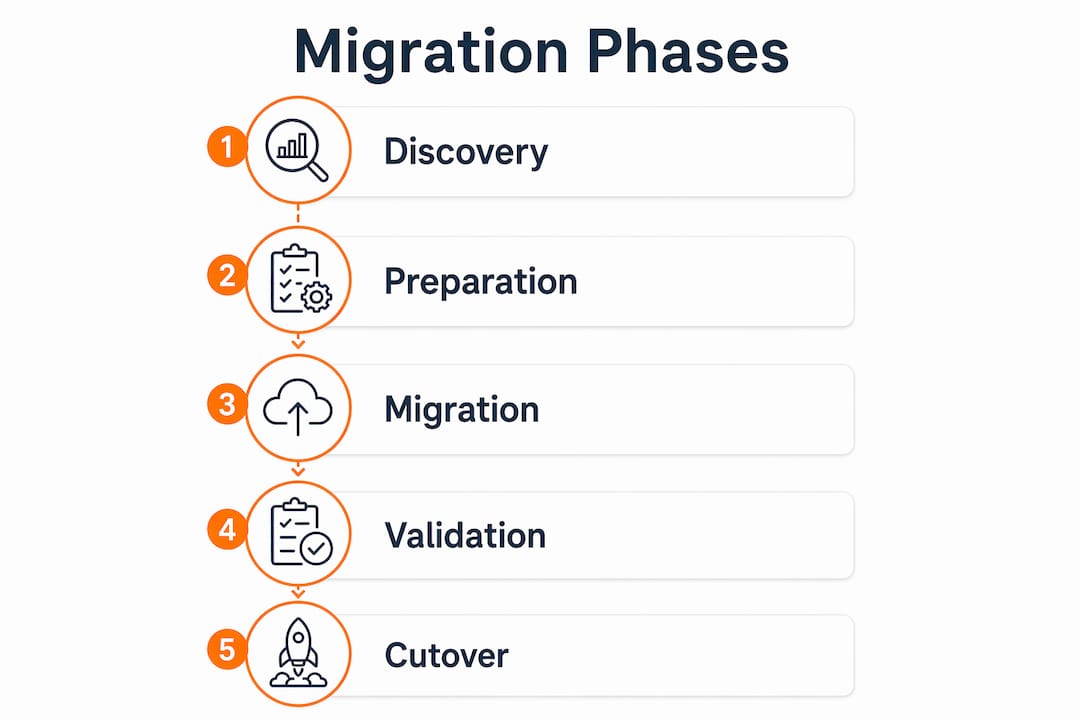
DigitalOcean to AWS migration is the process of transferring workloads, data, and infrastructure from DigitalOcean’s platform to Amazon Web Services using proven tools and methods to minimize downtime and reduce operational risk. The industry standard framework for this process is the AWS Cloud Migration methodology, which covers discovery, planning, execution, and post-migration optimization. Teams that skip the discovery phase face the highest failure rates. Approximately 70% of environments have undocumented dependencies that cause the majority of migration failures. A phased, methodical approach is the only reliable path from DigitalOcean to production-grade AWS infrastructure.
What does a DigitalOcean to AWS migration require before you start?
A successful migration starts with a complete infrastructure inventory. You need active accounts on both platforms, with administrative access on DigitalOcean and an AWS account with IAM permissions to create roles, manage S3 buckets, and run EC2 import tasks.

The core toolset includes the AWS CLI, the DigitalOcean CLI (doctl), and image conversion utilities such as qemu-img. These tools handle snapshot exports, format conversions, and S3 uploads. Without them, the manual steps become error-prone and slow.
The discovery phase is where most teams underestimate the work. Businesses typically identify 10–20% of infrastructure as redundant during discovery, which creates immediate cost savings before a single workload moves. That means a proper audit pays for itself. Map every Droplet, database, storage bucket, DNS record, and external dependency before writing a single migration script.
Pro Tip: Document your DigitalOcean VPC topology, firewall rules, and floating IPs before starting. Recreating these in AWS VPC without notes is the most common source of post-migration networking failures.
| Prerequisite | Details |
|---|---|
| AWS IAM roles | Create vmimport role with trust policy for vmie.amazonaws.com |
| AWS CLI | Install and configure with access keys and default region |
| doctl | Authenticate with DigitalOcean API token for snapshot management |
| S3 bucket | Create a dedicated bucket in the target AWS region for image uploads |
| Infrastructure map | Document all Droplets, databases, Spaces buckets, DNS records, and dependencies |
| Image conversion tool | Install qemu-img or equivalent for RAW to VMDK/OVA format conversion |
For teams managing complex enterprise migrations, reviewing an AWS migration checklist before starting discovery prevents gaps that surface at the worst possible time.
How do you migrate DigitalOcean Droplets to AWS EC2?
Droplet migration uses the AWS VM Import/Export service. The process converts a DigitalOcean snapshot into an AMI (Amazon Machine Image) that runs on EC2. Each step must be executed in the correct order to avoid silent failures.
- Prepare the Droplet. Remove DigitalOcean-specific agents (
do-agent). Configure the network interface to use DHCP instead of a static IP. AWS VPC assigns IPs dynamically, and a static configuration will leave the instance unreachable after import. - Create and export the snapshot. Power off the Droplet. Create a snapshot via the DigitalOcean control panel or
doctl compute snapshot create. Download the snapshot image file. - Convert the image format. Use
qemu-img convert -f raw -O vmdk source.img output.vmdkto produce a VMDK file. AWS VM Import accepts VMDK, OVA, and VHD formats. - Upload to S3. Run
aws s3 cp output.vmdk s3://your-bucket/to upload the converted image to your dedicated S3 bucket. - Configure the vmimport IAM role. The role requires a trust policy for
vmie.amazonaws.comand permissions covering S3GetObject,ListBucket, and EC2ImportImageactions. Incorrect vmimport IAM role setup causes silent failures or hangs with no error message. This is the single most common point of failure in Droplet migrations. - Start the import task. Run
aws ec2 import-image --disk-containers file://containers.json. Monitor progress withaws ec2 describe-import-image-tasks. - Launch and validate. Once the AMI is available, launch an EC2 instance. Verify SSH access, check running services, and confirm application behavior before decommissioning the original Droplet.
Pro Tip: Check kernel compatibility before migrating older Linux distributions. Kernel mismatches with older Linux distros can cause boot failures on AWS hypervisors. Run uname -r and cross-reference with AWS-supported kernel versions for your distro.
| Step | Tool | Common failure |
|---|---|---|
| Network prep | Manual config | Static IP left in place |
| Snapshot export | doctl / control panel | Snapshot taken while Droplet is running |
| Format conversion | qemu-img | Wrong output format for VM Import |
| S3 upload | AWS CLI | Wrong bucket region |
| IAM role setup | AWS Console / CLI | Missing trust policy for vmie.amazonaws.com |
| Import task | AWS CLI | Permissions gap causes silent hang |
How do you migrate DigitalOcean databases and Spaces to AWS?
Managed databases map directly to Amazon RDS. A DigitalOcean PostgreSQL cluster becomes an RDS PostgreSQL instance. A MySQL cluster becomes RDS MySQL. The schema, users, and data transfer using AWS Database Migration Service (DMS), which supports full load with continuous replication. DMS enables zero-downtime migration by replicating changes in real time while the source database stays live. This means your application keeps running on DigitalOcean while the AWS target catches up, and the cutover becomes a DNS or connection-string swap.
DigitalOcean Spaces migration to Amazon S3 is straightforward because Spaces supports an S3-compatible API. You can sync data using the AWS CLI by pointing it at the DigitalOcean Spaces endpoint with custom credentials. The command aws s3 sync s3://your-space/ s3://your-aws-bucket/ --source-endpoint https://nyc3.digitaloceanspaces.com transfers objects without writing custom scripts.
Pro Tip: For large Spaces buckets, run the sync during off-peak hours and use --exclude flags to skip temporary or cache files. Transferring unnecessary data inflates both migration time and AWS data ingress costs.
| DigitalOcean service | AWS equivalent | Migration method |
|---|---|---|
| Managed PostgreSQL | Amazon RDS PostgreSQL | AWS DMS with CDC replication |
| Managed MySQL | Amazon RDS MySQL | AWS DMS with CDC replication |
| Managed Redis | Amazon ElastiCache | Manual dump and restore |
| Spaces object storage | Amazon S3 | AWS CLI sync via S3-compatible endpoint |
How do you migrate Kubernetes workloads and update app configurations?
DigitalOcean Kubernetes (DOKS) clusters migrate to Amazon EKS. The process is not a direct lift-and-shift. Kubernetes manifests need targeted updates because DigitalOcean and AWS use different annotations, storage classes, and load balancer controllers.
Key changes to make in your manifests:
- Replace
kubernetes.digitalocean.com/load-balancer-idannotations with AWS Load Balancer Controller annotations. - Swap DigitalOcean block storage classes (
do-block-storage) with AWS EBS storage classes (gp3orio1). - Update any references to DigitalOcean container registry endpoints with Amazon ECR image paths.
- Replace DigitalOcean node pool labels with EKS managed node group labels in pod affinity rules.
After updating manifests, update application configuration files to point to new AWS RDS endpoints, S3 bucket URLs, and any internal service addresses. Environment variables and Kubernetes Secrets that hold database connection strings need to reflect the new RDS hostnames.
DNS migration from DigitalOcean to AWS Route 53 is the final cutover step. Lower your TTL values to 60 seconds at least 24 hours before the switch. This reduces the blast radius if you need to roll back. Blue-green deployments and weighted DNS routing enable near-zero customer-facing downtime during cutover by splitting traffic gradually between the old and new environments.
Pro Tip: Run both environments in parallel for at least 48 hours before full cutover. Use AWS Route 53 weighted routing to send 5% of traffic to the new EKS cluster first. Monitor error rates and latency before increasing the weight.
What are the most common migration pitfalls and how do you fix them?
Most migration failures trace back to three root causes: IAM misconfiguration, network setup errors, and undocumented dependencies. Knowing these in advance cuts debugging time significantly.
- vmimport role misconfiguration. The role must trust
vmie.amazonaws.comexplicitly. A missing or incorrect trust relationship causes the import task to hang indefinitely with no error output. - Static IP configuration on Droplets. Forgetting to switch to DHCP before snapshot creation leaves the imported EC2 instance with no network access. The fix requires mounting the volume on a working instance and editing the network config file.
- Kernel incompatibility. Older CentOS 6 or Ubuntu 14.04 Droplets may fail to boot on AWS Nitro hypervisors. Test with a t3.micro before committing to production instance types.
- Undocumented service dependencies. Legacy dependencies created by former employees are the leading cause of post-migration outages. A thorough discovery phase, including network traffic analysis and application log review, surfaces these before they cause problems.
The safest rollback strategy is to keep your DigitalOcean environment fully operational until AWS validation is complete. Use Route 53 weighted routing to shift traffic gradually, and maintain the ability to flip back to DigitalOcean within minutes if monitoring shows degraded performance. Never decommission DigitalOcean resources until the AWS environment has run cleanly under full production load for at least 72 hours.
For a structured approach to avoiding these failure modes, the IT-Magic guide on migration pitfalls to avoid covers enterprise-grade rollback planning in detail.
Key Takeaways
A successful DigitalOcean to AWS migration requires thorough discovery, correct IAM configuration, and a phased cutover strategy that keeps rollback available until AWS runs cleanly under full production load.
| Point | Details |
|---|---|
| Discovery first | Map all dependencies before migrating to avoid post-cutover outages. |
| vmimport IAM role | Configure the trust policy for vmie.amazonaws.com or imports will silently fail. |
| DHCP before snapshot | Switch Droplet network config to DHCP before exporting to prevent EC2 connectivity loss. |
| DMS for databases | Use AWS DMS with CDC replication to migrate databases with zero downtime. |
| Phased cutover | Use Route 53 weighted routing to shift traffic gradually and preserve rollback capability. |
What I’ve learned from complex DigitalOcean migrations
The teams that struggle most with moving from DigitalOcean to AWS are not the ones with the most complex infrastructure. They are the ones that treat migration as a technical task rather than a business risk exercise.
The discovery phase is where migrations are won or lost. Every project I have worked on has surfaced at least one dependency that nobody on the current team knew existed. A cron job calling an internal API. A legacy service still receiving traffic from a forgotten subdomain. These are not edge cases. They are the norm. Skipping discovery to save a week of planning costs three weeks of incident response after cutover.
The hybrid migration approach is the right default for most DigitalOcean environments. Rehost the straightforward workloads first to build momentum and reduce the DigitalOcean bill. Then replatform databases to RDS and storage to S3 to get the reliability and managed service benefits. Retire anything the discovery phase flagged as unused. This sequence balances speed with long-term maintainability. Rehosting is the fastest method but inherits architectural debt, which is why replatforming in the second wave matters.
Post-migration cost optimization is where the real savings appear. AWS gives you rightsizing recommendations through Compute Optimizer within days of running workloads. Most teams that migrate from DigitalOcean find they over-provisioned EC2 instances in the first wave. Rightsizing after 30 days of production data is standard practice, not an afterthought.
— Oleksandr
AWS migration services for your DigitalOcean transition
Moving infrastructure between cloud platforms carries real execution risk, especially for eCommerce and fintech teams where downtime translates directly into lost revenue. IT-Magic has completed 700+ AWS migrations as an AWS Advanced Tier Partner, taking full ownership of execution from infrastructure audit through post-migration optimization.
Whether your environment involves a handful of Droplets or a complex Kubernetes deployment with managed databases and terabytes of object storage, IT-Magic handles the technical execution so your team stays focused on the business. The AWS migration services page covers the full engagement model, including rehost, replatform, and refactor strategies tailored to your infrastructure. For teams that need to understand the cost picture before committing, the guide on cutting AWS migration costs without losing performance is a practical starting point.
FAQ
What is the fastest way to migrate from DigitalOcean to AWS?
Rehosting via AWS VM Import/Export is the fastest method. It converts DigitalOcean Droplet snapshots into EC2 AMIs with minimal reconfiguration, though it inherits existing architectural debt.
How do I migrate DigitalOcean Spaces to Amazon S3?
Use the AWS CLI with DigitalOcean Spaces S3-compatible endpoints to sync objects directly. Spaces supports the S3 API, so standard AWS tools work without custom scripts.
Does AWS Database Migration Service support DigitalOcean databases?
AWS DMS supports full load plus continuous replication from DigitalOcean managed databases to Amazon RDS. This enables zero-downtime migration by keeping the source database live during transfer.
How do I avoid downtime during the DNS cutover?
Lower your DNS TTL to 60 seconds at least 24 hours before switching. Use Route 53 weighted routing to shift traffic gradually, and keep the DigitalOcean environment live until AWS has run cleanly under full load for 72 hours.
What causes most DigitalOcean to AWS migration failures?
Undocumented service dependencies and incorrect vmimport IAM role configuration are the two leading causes. A thorough discovery phase and careful IAM setup before starting the migration prevent both.